


3 Easiest Ways to Use Claude Code on Your Mobile Phone
One of the best things about Claude Code is that it can handle big, messy tasks—large refactors, dependency upgrades, repo-wide fixes, and even multi-step debugging.
But those tasks can take a while. Sometimes 30 minutes. Sometimes hours. And somewhere in the middle of that run, Claude Code will usually pause and ask something simple: “Allow this command?” or “Approve file modification?” Which means you can’t really walk away. You end up sitting behind your computer, waiting for a prompt that might require a one-word answer. It’s a strange feeling: the AI is doing all the work, but you’re still stuck at your desk supervising it.
Meanwhile, real life is happening. You want to grab lunch. Go for a walk. Maybe hit the gym. Wouldn’t it be nice if Claude Code could just keep running while you’re out, and you could approve things from your phone when needed?
Good news: that’s now possible. Over the past week, I experimented with three different ways to run Claude Code from a phone, so long tasks can keep moving even when you’re away from your laptop:
- Remote Control — Anthropic’s official way to connect Claude Code to the Claude mobile app
- Happy Coder— a mobile app built specifically for running Claude Code, Codex, and many other coding copilots
- SSH + Tailscale + tmux — the hacker setup for controlling your dev machine from anywhere
In this post, I’ll walk through how they work, what the setup looks like, and which one I’d actually use day-to-day. I’ll also share a few tools that make mobile coding less painful—like handling context across sessions and managing multiple long-running tasks.
Claude Code Remote Control: One Command, No Setup
Anthropic shipped Remote Control, and it's the simplest of the three methods in this article: one command, one QR code, no third-party tools.
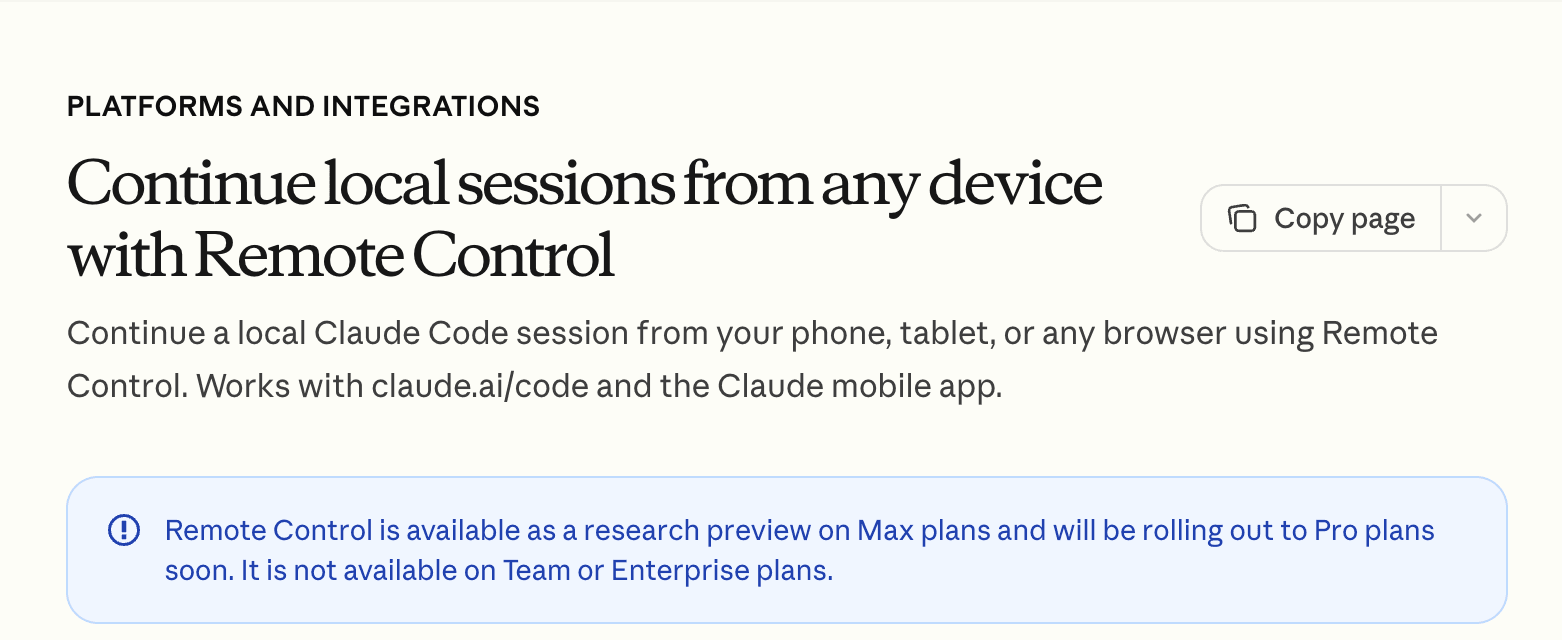
Setup is minimal. Navigate to your project directory and run:
claude remote-control
A QR code appears in your terminal. Open the Claude App on your phone and scan it. Your phone and terminal are now fully synced: send messages, read output, approve actions, all in real time. If you're already inside a running Claude Code session, the /rc shortcut connects it to Remote Control without losing any conversation history.
Happy Coder: A Free Mobile App for Claude Code and Codex
Remote Control is the fastest path from desk to phone, but it's limited to Claude Code, requires a Pro or Max subscription, and has no push notifications or voice input. If any of those matter to you, Happy Coder takes a different approach. It’s a dedicated open-source app built by the community, specifically for mobile AI coding.
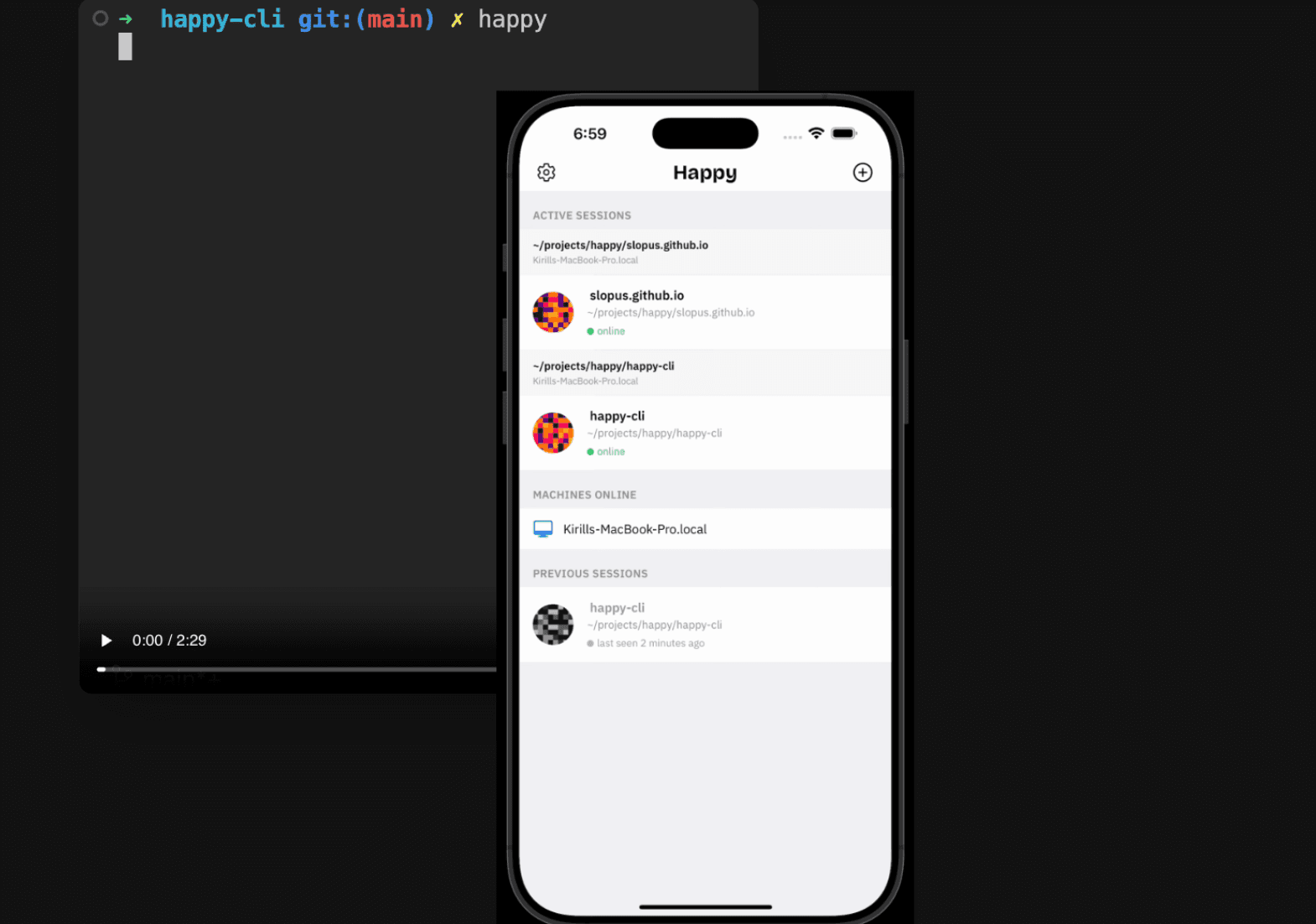
Its architecture has three layers:
- a CLI tool (happy-coder) running on your machine,
- an encrypted relay server in the middle,
- and a mobile app on iOS and Android.
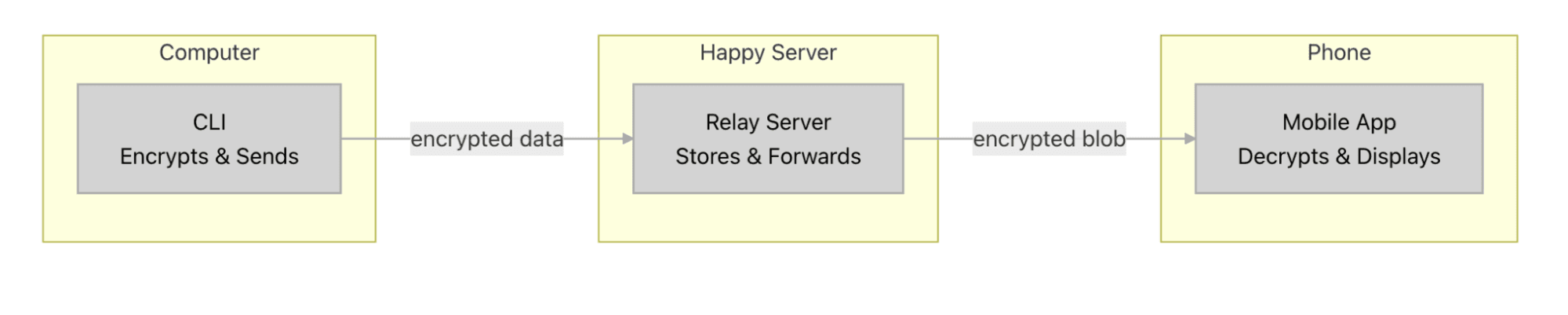
There's also a web interface for tablets and browsers. Model calls and code execution stay on your machine. The app is just a control layer.
What makes Happy Coder stand out for mobile:
- Supports both Claude Code and Codex. It is the only mobile option that covers the two dominant AI coding CLIs in one app.
- Push notifications. You get alerted when Claude needs approval, code is ready for review, or something breaks. No need to keep the app open or check back manually.
- Voice input. You speak your prompt instead of tapping it out on a phone keyboard. It's significantly faster for longer instructions.
- Conversation UI. You see your current project and session state in a chat interface instead of raw terminal output.
Security runs on end-to-end encryption using the same protocol as Signal (TweetNaCl). The relay server only sees encrypted blobs, and no ports are exposed on your machine.
Access Claude Code from Your Phone with SSH, Tailscale, and tmux
The most established approach to remote access is, of course, to SSH back into your own machine. SSH (Secure Shell) is a way to control one computer from another over the internet. It's not an app you install, but a protocol baked into macOS, most Linux distributions, and Windows 10 and later, the same way Wi-Fi or Bluetooth support is. SSH lets you open a terminal on a remote machine from anywhere.
For this use case, the "remote machine" is just your own computer at the office, and the "client" is your phone. You enable SSH on your computer, install an SSH client on your phone, connect, and you have a full terminal where Claude Code runs exactly as it does at your desk.
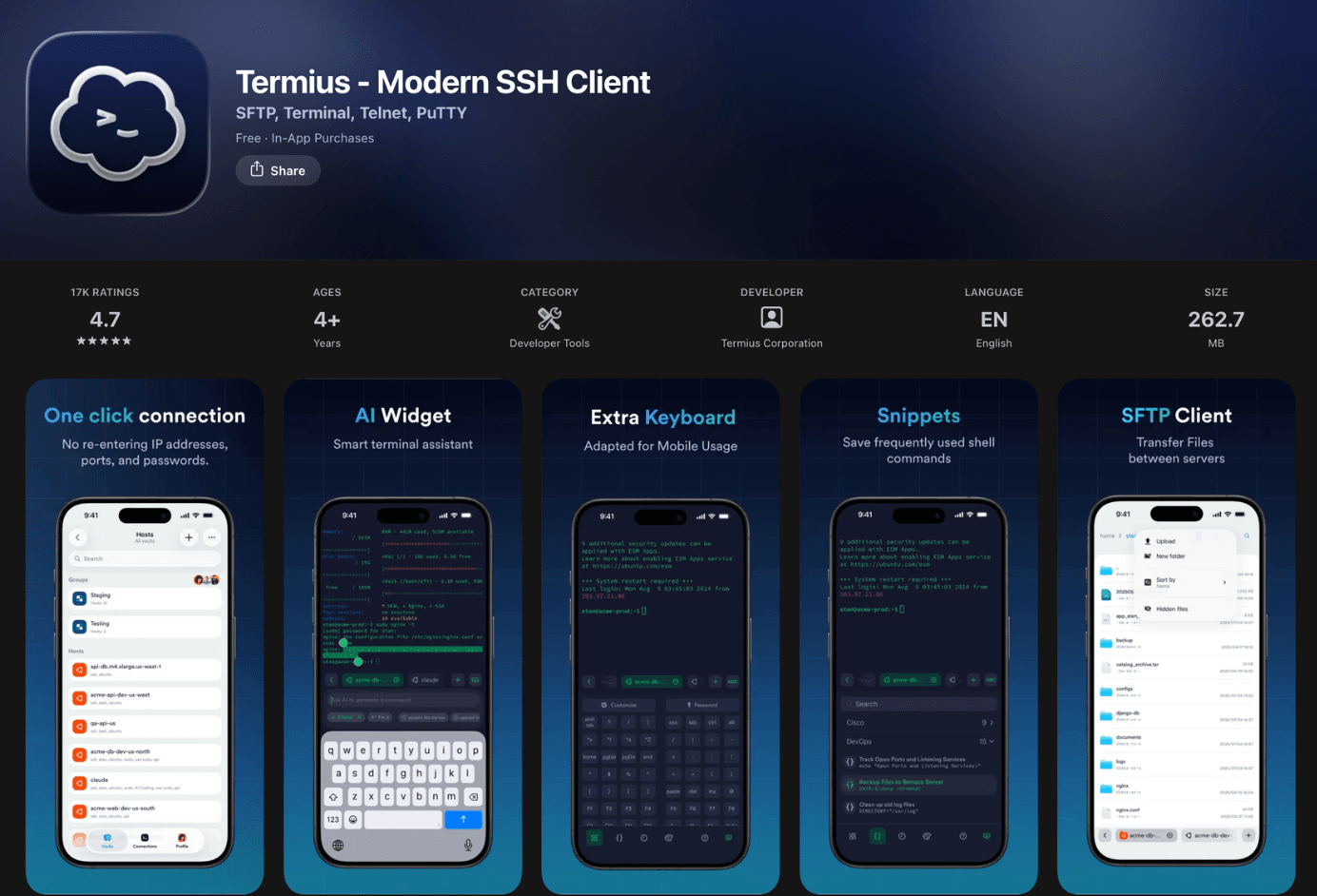
For the SSH client, I used Termius. It covers both iOS and Android with a clean interface, and the free tier handles everyday use fine.
SSH gives you a full terminal, but it assumes both devices can find each other on the network. Usually, they can't. Generally, your computer is behind your office router, while your phone is on a cell tower or your home Wi-Fi. These are separate networks, and neither device knows how to find the other. You could expose your computer's SSH port to the public internet, but that opens your machine to anyone scanning for open ports. You need a way to connect without making your computer visible to the entire internet.
The fix I used is Tailscale: an app that ensures an encrypted tunnel between your devices, with no public IP or firewall changes needed. Your phone and your office machine behave as if they're on the same local network, even when they're not. Corporate VPNs, WireGuard, and frp tunneling all solve the same problem. You can use whatever works for you.
Once you're connected, the next challenge is staying connected. An SSH session is a live connection between two devices. If that connection breaks for any reason — your phone switches from Wi-Fi to cellular, you walk into an elevator, your office internet blips — the session dies and whatever was running in it stops. On a phone, these interruptions could happen constantly.
To keep the connection steady, I used tmux to keep the session alive on the server side. If you reconnect after a drop, run tmux attach, and Claude Code will be right where you left it, no progress lost.
The upside:
- Free. No subscriptions beyond Claude Code itself.
- Stable. tmux keeps sessions alive during interruptions.
- Fully under your control. No third-party services between you and your machine.
The downside:
- Setup takes hands-on work. You need to be comfortable configuring SSH, Tailscale, and tmux.
- Not very pleasant to use. A terminal on a phone screen is nobody's idea of a good time.
Claude Code Remote Control vs. Happy Code vs. SSH Terminal on Phone
All three methods keep your code on your machine and give you a terminal from your phone. The differences come down to setup effort, features, and cost.
Here's how the three options compare at a glance:
| Criteria | Remote Control (Official) | Happy Coder | SSH + Tailscale + tmux |
|---|---|---|---|
| Difficulty in Setting Up | Very low, scan the QR code to connect | Low, install CLI + App | Medium, requires setting up SSH/VPN/tmux |
| Cost | Requires Pro or Max subscription | Free and open source | Free (beyond Claude Code subscription) |
| Supported Tools | Claude Code | Claude Code + Codex | Claude Code |
| Requires Persistent Host | Yes | Yes | Yes |
| iOS/Android | Official Claude app | App Store / Google Play | Termius or other SSH clients |
| Push Notifications | No | Yes | No |
| Voice Input | No | Yes | No |
| Disconnect Recovery | Automatic | Automatic reconnect | Manual (tmux attach after reconnecting) |
| Security | Encrypted, no open ports | End-to-end encryption | VPN/Encrypted |
| Best for | Max users who want the simplest experience | Users who enjoy full control over their experience and multi-tool support | Users who want full control |
Happy Coder and Remote Control aren't mutually exclusive — you can use both. Remote Control is simpler: zero setup, tight integration with the Claude app. Happy Coder is more flexible: free, open source, supports Codex alongside Claude Code, and adds push notifications and voice input that Remote Control doesn't have.
Fixing Claude Code Mobile Pain Points: Typing, Memory, and Efficiency
Using Claude Code from a phone works, but it introduces friction you don't get at a desk. Here are three problems I ran into and the tools I used to solve them:
- Typing is painfully slow. I started using Typeless for voice input instead.
- Every new session starts with zero memory. memsearch gives Claude persistent, searchable recall across sessions and devices.
- You can only watch one task at a time. cc-tmux-worktree-orchestration lets you run multiple Claude Code instances in parallel.
Voice Input with Typeless
Typing prompts on a phone keyboard is slow, especially when you need to describe a multi-step task in detail. I started using Typeless to get around this. It replaces your phone keyboard with a voice-to-text input that goes beyond raw transcription:
- Fast voice-to-text conversion. You speak your prompt naturally, and Typeless turns it into text in seconds. No more thumbing out a multi-line prompt, one letter at a time.
- Cleans up your speech. Strips filler words like "um" and "uh," removes accidental repetition, and keeps only your final phrasing when you correct yourself mid-sentence.
- Auto-formats output. Spoken lists, steps, and key points get organized into structured text, not a wall of run-on sentences.
- Supports 100+ languages and mixing. Say a prompt in whatever mix of languages you think in, and Typeless detects and transcribes each one automatically.
- Adapts to your style. It learns your tone, phrasing, and vocabulary over time, so output reads like something you'd actually type.
- Works across apps. It operates as a system keyboard on Mac, Windows, iOS, and Android, so it works inside whatever SSH client, browser, or Claude app you're using.
Typeless claims voice input runs roughly 4x faster than typing. Even at half that, it's a meaningful difference when you're thinking faster than you can type on your phone.
Carry Session Context Between Desktop and Mobile with memsearch
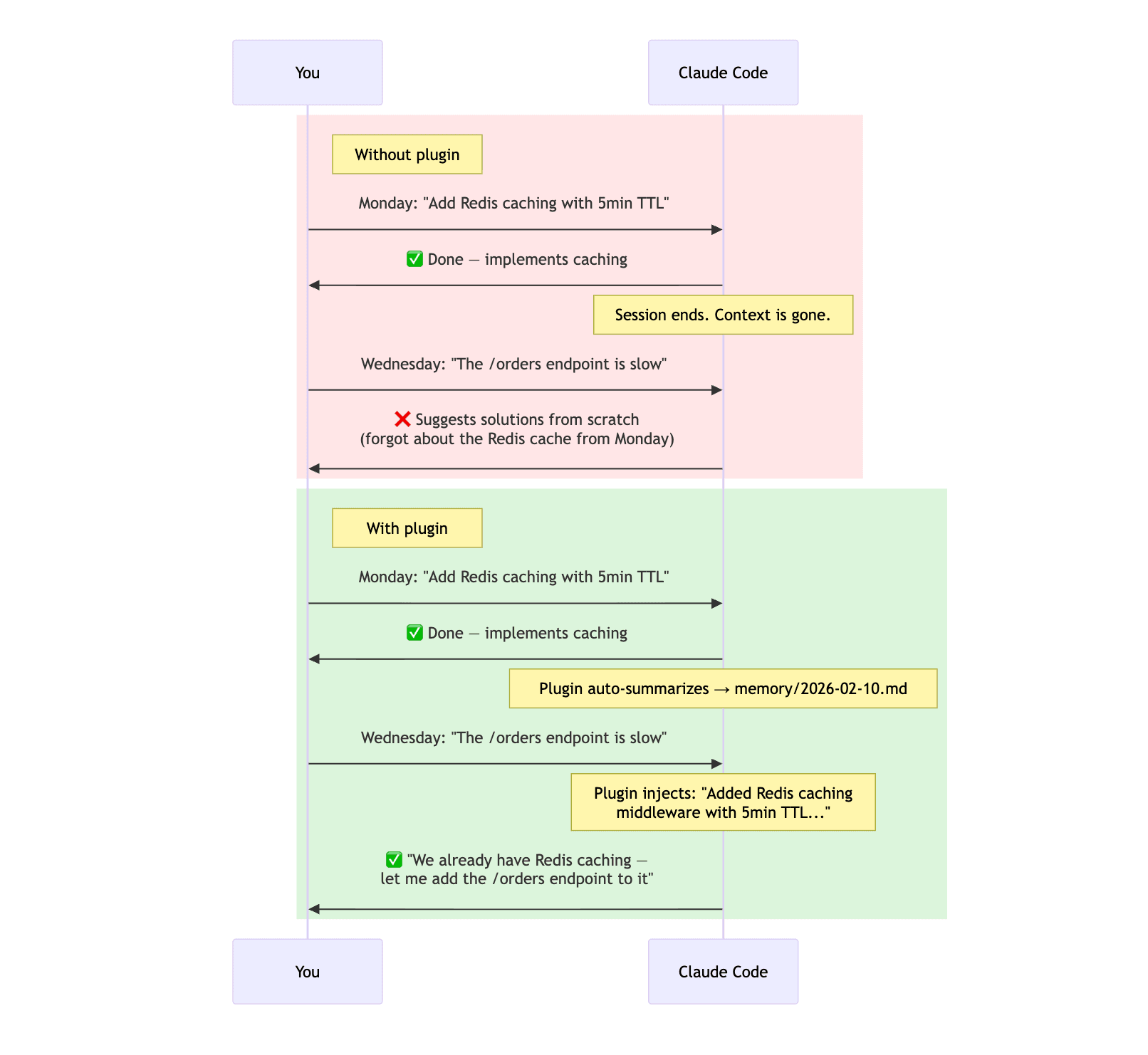
Many mobile setups start a fresh session every time you connect. You reconnect after an SSH drop or re-scan after Remote Control times out, and Claude starts over with zero memory of what you discussed. You can spend a morning working through an architecture decision on your laptop, open a new session from your phone that afternoon, and Claude has no idea it happened.
memsearch fixes this. It's a Claude Code plugin powered by Milvus that gives your agent persistent, searchable memory across sessions and devices. Here's how it works:
- Automatic summarization. At the end of each conversation turn, memsearch summarizes what happened (what you asked, what Claude did, which files changed) and appends it to a local Markdown file organized by date.
- Semantic recall on every prompt. When you start a new session or send a message, the plugin searches your memory files using a hybrid vector-and-full-text search, then injects only the relevant context. It doesn't dump everything into your context window.
- Three-layer progressive disclosure. The recall process runs in a background subagent: it searches, expands promising results to see the surrounding context, and can even parse original session transcripts if needed. Your main session only sees the final curated summary.
- Markdown as the source of truth. All memories are stored as plain .md files, human-readable and git-friendly. The vector index is a derived cache that can be rebuilt from the Markdown at any time.
Install with two commands, and you're done.
/plugin marketplace add zilliztech/memsearch
/plugin install memsearch
For anyone switching regularly between desktop and mobile, this is close to essential.
For more details, check out this blog: Adding Persistent Memory to Claude Code with the Lightweight memsearch Plugin
Speed Up Claude Code with Parallel Tasks: git worktree + tmux
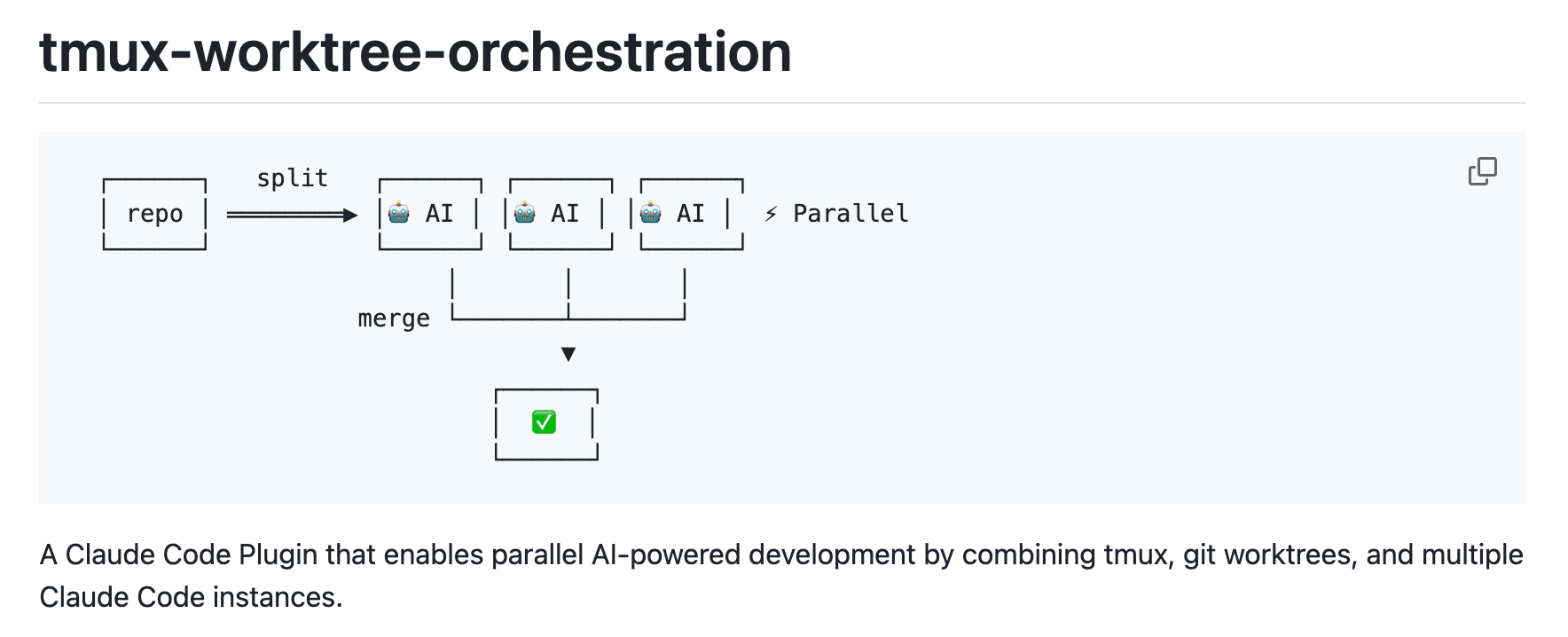
On mobile, you're naturally limited to watching one task at a time. But Claude Code doesn't have to work that way. If you kick off multiple instances in parallel before you leave, one per feature running concurrently, you come back to finished work instead of a queue.
git worktree makes this possible. It creates isolated working directories from the same repository, each on its own branch with its own copy of your codebase. Pair each worktree with its own Claude Code instance, and they work simultaneously without file conflicts. Combined with tmux's multi-window management (which you'll already have if you went with the SSH setup from earlier), you can switch between running tasks on your phone to check their progress.
I built a plugin called cc-tmux-worktree-orchestration to automate the whole workflow. Here's what it does:
- Split. /tmux-worktree-split login signup dashboard creates three worktrees, three feature branches, and three tmux windows, each with Claude Code auto-started. You can also organize by tmux sessions or panes, depending on your preference.
- Merge. /tmux-worktree-merge merges all feature branches back to your base branch, removes the worktrees, cleans up the branches, and kills the tmux sessions.
- State tracking. The plugin writes a .worktree-split-state.md file to your project root on split, recording the base branch, tmux configuration, and all feature info. Merge reads this file for cleanup. It's auto-deleted after merge and won't be committed to git.
One thing to note: git worktrees only contain files tracked by git. Dependencies in .gitignore (like node_modules or .venv) won't be in the new worktrees. You'll need to reinstall dependencies in each one, or symlink to a shared location.
Install:
/plugin marketplace add zc277584121/cc-tmux-worktree-orchestration
/plugin install tmux-worktree-orchestration
AI Coding is Going Mobile
Claude Code isn't the only AI coding tool gaining traction on phones. Other tools are heading the same direction, each with a different architecture.
Cursor Cloud Agent accepts tasks from the web, mobile, Slack, or GitHub. Each agent spins up its own cloud VM with a full development environment, then produces a merge-ready PR with screenshots and a video of the changes. You can remotely control the agent's desktop from your phone to test the result yourself. Cursor also has a CLI that works with the SSH + tmux setup described earlier.

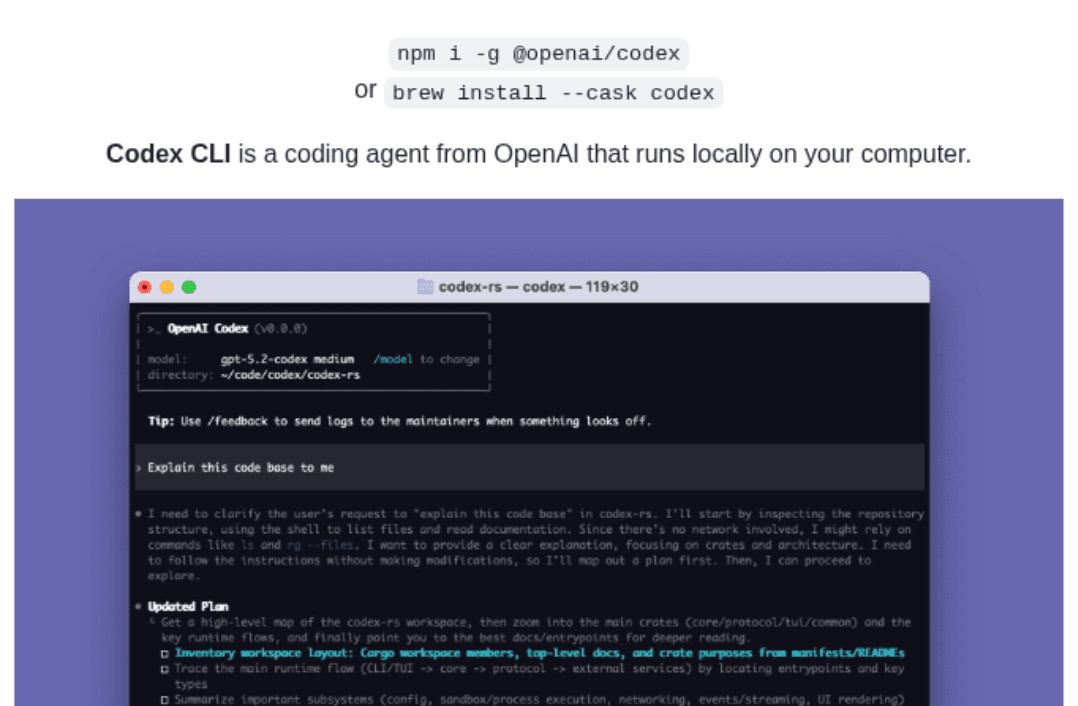
OpenAI Codex offers two paths to mobile. The CLI is terminal-based, so it works over SSH exactly like Claude Code. The cloud sandbox preloads your repository into a hosted environment and lets you start tasks directly from the ChatGPT iOS app, no SSH required.
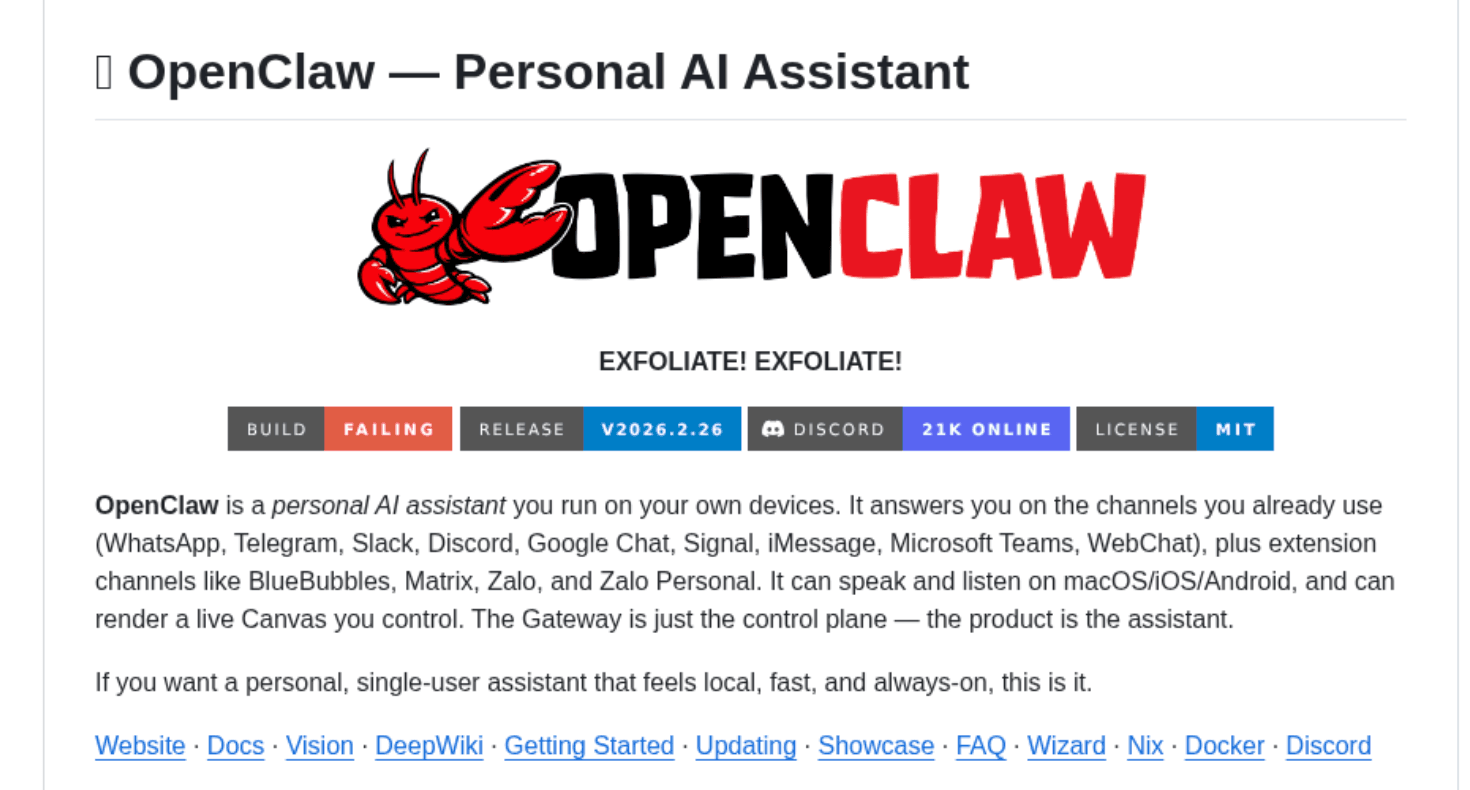
OpenClaw (formerly Clawdbot) takes a different approach entirely. It's an open-source AI assistant that lives inside messaging apps you already use: WhatsApp, Telegram, Slack, Discord, iMessage. It's not a dedicated coding tool like the others, but a general-purpose agent that can run shell commands, control a browser, and manage files on your machine. Developers have used it to trigger Claude Code tasks from Telegram, making it the most unconventional path to mobile coding on this list.
Different architectures, same direction: AI coding tools are decoupling from the desk.
Conclusion
So, which method should you pick to connect Claude Code to your phone? Based on my experiences, it depends on what you prioritize:
- Remote Control if you want the simplest setup. One command, one QR scan, no infrastructure. Best for Pro or Max subscribers who just want it to work.
- SSH + Tailscale + tmux for full control and zero extra cost. Free, flexible, no dependency on third-party apps. Best for engineers comfortable with terminal configuration.
- Happy Coder if you use both Claude Code and Codex, or if you want push notifications and voice input. The only option that covers multiple AI coding CLIs in one app. Free and open source.
Once you've picked a method, the friction shifts from "can I access Claude Code" to "can I use it well on a small screen." That's where the tools come in:
- Typeless makes typing prompts on a phone keyboard bearable.
- memsearch keeps your context alive across sessions and devices.
- cc-tmux-worktree-orchestration turns one Claude Code session into several running in parallel.
Put together, the access problem is solved, and the experience is getting close to what you'd expect at a desk. Claude Code on mobile isn't a workaround anymore. It's a workflow.
If you want to discuss your setup, adapt memsearch for a different agent framework, or scale it across a team, join our Slack channel. You can also book a 20-minute one-on-one through Milvus Office Hours for hands-on help.
Keep Reading

Keep Reading

Zilliz Cloud Now Available in Azure North Europe: Bringing AI-Powered Vector Search Closer to European Customers
The addition of the Azure North Europe (Ireland) region further expands our global footprint to better serve our European customers.
Proactive Monitoring for Vector Database: Zilliz Cloud Integrates with Datadog
we're excited to announce Zilliz Cloud's integration with Datadog, enabling comprehensive monitoring and observability for your vectorDB deployments.

AI Integration in Video Surveillance Tools: Transforming the Industry with Vector Databases
Discover how AI and vector databases are revolutionizing video surveillance with real-time analysis, faster threat detection, and intelligent search capabilities for enhanced security.