


Build Multimodal Search for 3D Assets with Tripo and Zilliz Cloud
AI 3D generation has made asset creation much faster. With Tripo, an AI 3D model generator, teams can generate 3D models from text prompts, images, or sketches, then use them across game development, e-commerce, marketing, concept design, and internal creative pipelines.
That speed creates a new problem: assets pile up quickly.
A few generated models are easy to manage manually. A few thousand are not. Designers may regenerate objects that already exist. Game teams may lose track of character, prop, and environment variations. Marketing teams may spend more time hunting for a usable asset than adapting it for a campaign.
This tutorial shows how to turn those generated assets into a searchable catalog. Tripo is the 3D creation layer, while Zilliz Cloud is the retrieval layer: a fully managed vector database service from the creators of Milvus that stores embeddings and metadata, supports low-latency similarity search, and lets you combine vector search with structured filters.
In this workflow, each asset record contains a render preview, structured metadata, and one multimodal embedding. Once the assets are indexed, users can search by text, by image, or by text and image together.
What You Will Build
The library in this tutorial treats each 3D asset as a searchable catalog item. The 3D mesh remains wherever your asset pipeline stores it. The searchable record contains the asset’s render preview, metadata, storage references, and embedding.
This demo uses three types of local data:
| Local data | What it holds |
|---|---|
| milvus_dataset.csv | Metadata per asset: category, style, object type, color, use case, file name, project info |
| milvus_render_images/ | Rendered previews of the Tripo assets. These are what you search for and get back |
| milvus_input_images/ | Reference images used for image-to-3D generation. Stored as metadata and optional query references |
The basic workflow is:
Tripo-generated 3D asset
        ↓
Render preview image + metadata
        ↓
Multimodal embedding
        ↓
Zilliz Cloud collection
        ↓
Search by text, image, or text + image
        ↓
Return matched render images and metadata
This setup supports common creative search patterns:
- Search by concept, such as blue fantasy sword.
- Search by object type, style, color, or use case.
- Use a reference image when words are too vague.
- Combine a reference image with text to steer the result.
- Filter by structured fields such as category, project, operator, style, or generation mode.
The result is not just a folder with better filenames. It is a queryable asset catalog.
Why Render Previews and Metadata Matter
A 3D model is not easy to search directly. In a production pipeline, the model usually comes with several related pieces of information:
- the generated mesh or source file;
- one or more render preview images;
- an optional input or reference image;
- a caption or prompt;
- generated tags;
- project, owner, or operator fields;
- style, category, color, object type, and use-case metadata;
- URLs or storage keys that point back to the asset.
For this tutorial, the render preview is the visual object we embed. That works well because render previews capture shape, material, color, and visual style in a form that a multimodal embedding model can understand.
The render preview is the object the embedding model sees, so asset quality directly affects search quality. Geometric fidelity — preserved shapes, edges, and decorations — gives the model structural signal. High-resolution textures — distinct materials, faithful color, surface detail — give it material and color signal. Without both, embeddings flatten: a leather bag and a canvas bag look the same to the model, and search stops being useful.
Metadata gives you a second layer of control: you can run semantic search and still apply exact filters. One asset record might look like this:
caption: fantasy sword with blue gemstone
llm_object: sword
llm_category: weapon
llm_style: fantasy
llm_color: blue, silver
llm_use_case: game asset
generation_mode: image-to-3D
render_image_file: fantasy_sword.webp
input_image_file: sword_reference.webp
This combination makes the library useful in real workflows. For example, a game artist can search for a female character and restrict the result set to game asset. A marketer can look for realistic leather bag and filter by project. An e-commerce team can search by category and material without relying on exact filenames.
Image format note
In this demo, render and reference images are stored as .webp for space efficiency. The embedding API may be more reliable with PNG or JPEG inputs, depending on the model and provider route. If you see image-input errors, convert WebP previews to PNG or JPEG before embedding.
Tools in This Pipeline
This tutorial connects two systems: one that creates the 3D assets, and one that makes them searchable.
Tripo: the creation layer
Tripo is an AI 3D model generator built on a model with over 20 billion parameters. Its main product, Tripo Studio, covers the full asset creation flow in one workspace — from text, image, or sketch input through mesh refinement, texture generation, rigging, animation, and export. A standard mesh generates in two to five seconds, which is part of why asset libraries grow fast enough to need the search pipeline this tutorial builds.
Three capabilities are especially relevant here:
- Image-to-3D model generation preserves geometric structure — complex shapes, sharp edges, decorations, surface details — so generated models stay faithful to the input reference.
- HD Model pushes that fidelity further, supporting up to two million faces for assets that hold up under close-up rendering, product visualization, or 3D printing.
- Texture Generation at up to 8K resolution adds faithful color reproduction, clear material distinction (metal, leather, fabric, wood), and fine-grained surface detail such as wear marks, grain, and micro-textures.
Together, these give each asset enough geometric and material signal to produce a meaningful multimodal embedding — which is where the retrieval side comes in.
Zilliz Cloud: the retrieval layer
Zilliz Cloud is a fully managed Vector Lakebase platform built by the creators of Milvus, the most widely adopted open-source vector database (45,000+ GitHub stars, 100M+ Docker pulls, 10,000+ organizations in production). At its core is a production-grade vector database delivering sub-millisecond search at 100-billion scale. In this tutorial, it handles three things:
- Embedding storage — each asset's multimodal vector lives alongside its structured metadata in a single collection.
- Similarity search — text, image, or combined queries are embedded into the same vector space and matched against the stored render previews.
- Filtered retrieval — exact filters by category, style, use case, or project layer on top of the semantic search in one request, which is what turns a pile of vectors into a queryable catalog.
Prerequisites
Before you start, prepare the following:
- A Zilliz Cloud account and cluster. The free cluster is enough for this tutorial. Sign up, create a cluster, and copy its endpoint and token.
- An OpenRouter API key for the multimodal embedding model used below.
- Python 3.10 or later.
- The Milvus Python SDK. See the PyMilvus install guide if you are new to it.
- A set of Tripo-generated assets, including render preview images and metadata.
- Optional reference images used for image-to-3D generation.
The example code below assumes a script named tripo_rag.py, but the same logic can be moved into your own ingestion service, asset management backend, or internal tool.
Step 1: Prepare Tripo-Generated Asset Data
Start with the assets generated in Tripo. For each asset, export or store at least one render preview image. If the asset was created from a reference image, keep that reference image as well. It can be useful for debugging, previewing search results, or building future search modes.
Each row in your metadata CSV should represent one asset. At minimum, include:
- a unique asset ID;
- a render preview image filename or storage key;
- a caption or generation prompt;
- category, object, style, color, and use-case fields when available;
- project or owner fields if your team needs access control or workspace-level filtering;
- the URL or storage location of the original asset.
Richer metadata gives you better filters later. The vector helps you find visually and semantically similar assets. The metadata helps you narrow the result set to the assets that are actually usable for the current project.
Step 2: Create a Zilliz Cloud Collection
Each record in the collection represents one Tripo asset. The structured fields store metadata. The multimodal_vector field stores the embedding for the render preview.
The examples below use a 3072-dimensional vector and COSINE similarity. Keep the dimension aligned with the embedding model you use.
schema = MilvusClient.create_schema(
    auto_id=False,
    enable_dynamic_field=False
)

schema.add_field("id", DataType.INT64, is_primary=True)
schema.add_field("project_id", DataType.VARCHAR, max_length=64)
schema.add_field("operator_id", DataType.VARCHAR, max_length=64)
schema.add_field("caption", DataType.VARCHAR, max_length=2048)
schema.add_field("llm_keyword", DataType.VARCHAR, max_length=512)
schema.add_field("llm_object", DataType.VARCHAR, max_length=512)
schema.add_field("llm_category", DataType.VARCHAR, max_length=128)
schema.add_field("llm_style", DataType.VARCHAR, max_length=128)
schema.add_field("llm_color", DataType.VARCHAR, max_length=256)
schema.add_field("llm_use_case", DataType.VARCHAR, max_length=128)
schema.add_field("generation_mode", DataType.VARCHAR, max_length=32)
schema.add_field("url", DataType.VARCHAR, max_length=512)
schema.add_field("input_image_file", DataType.VARCHAR, max_length=256)
schema.add_field("input_image_key", DataType.VARCHAR, max_length=512)
schema.add_field("render_image_file", DataType.VARCHAR, max_length=256)
schema.add_field("render_image_key", DataType.VARCHAR, max_length=512)
schema.add_field(VECTOR_FIELD, DataType.FLOAT_VECTOR, dim=VECTOR_DIM)
Then create the vector index:
index_params = MilvusClient.prepare_index_params()

index_params.add_index(
    field_name=VECTOR_FIELD,
    index_type="AUTOINDEX",
    metric_type="COSINE",
)
If your script wraps the setup into a command, run:
python3 tripo_rag.py create-collection
After the command finishes, open the Zilliz Cloud console and check the collection list.
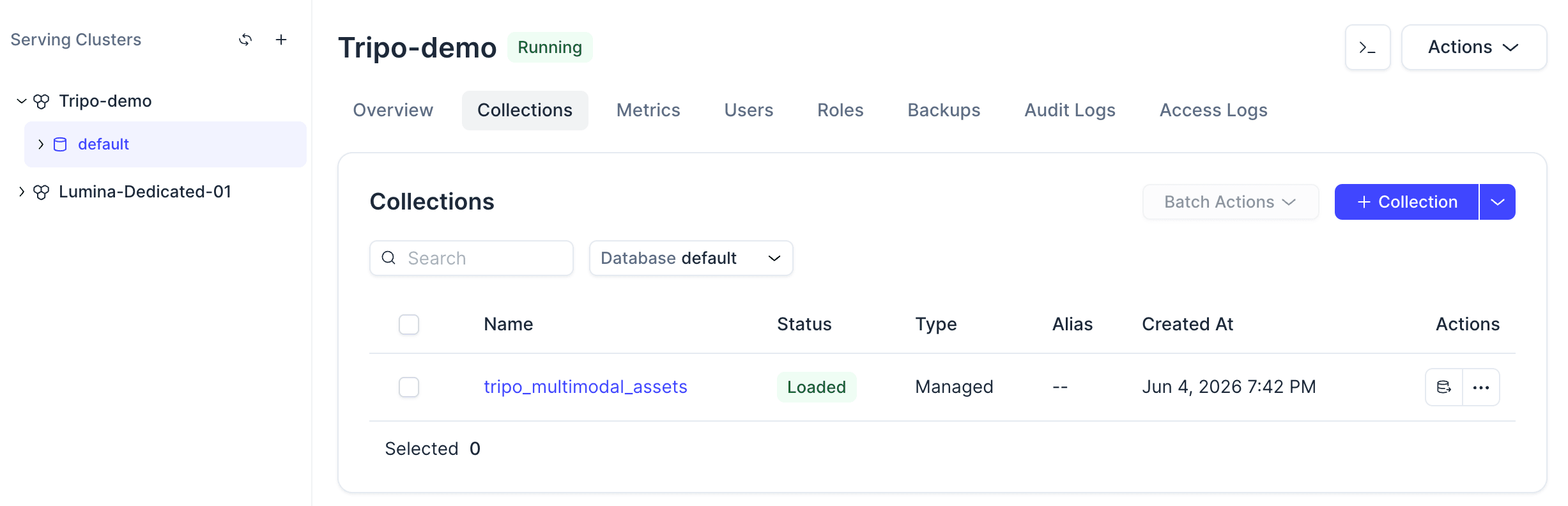
Click the collection to check the status, schema, loaded entities, and vector field configuration.
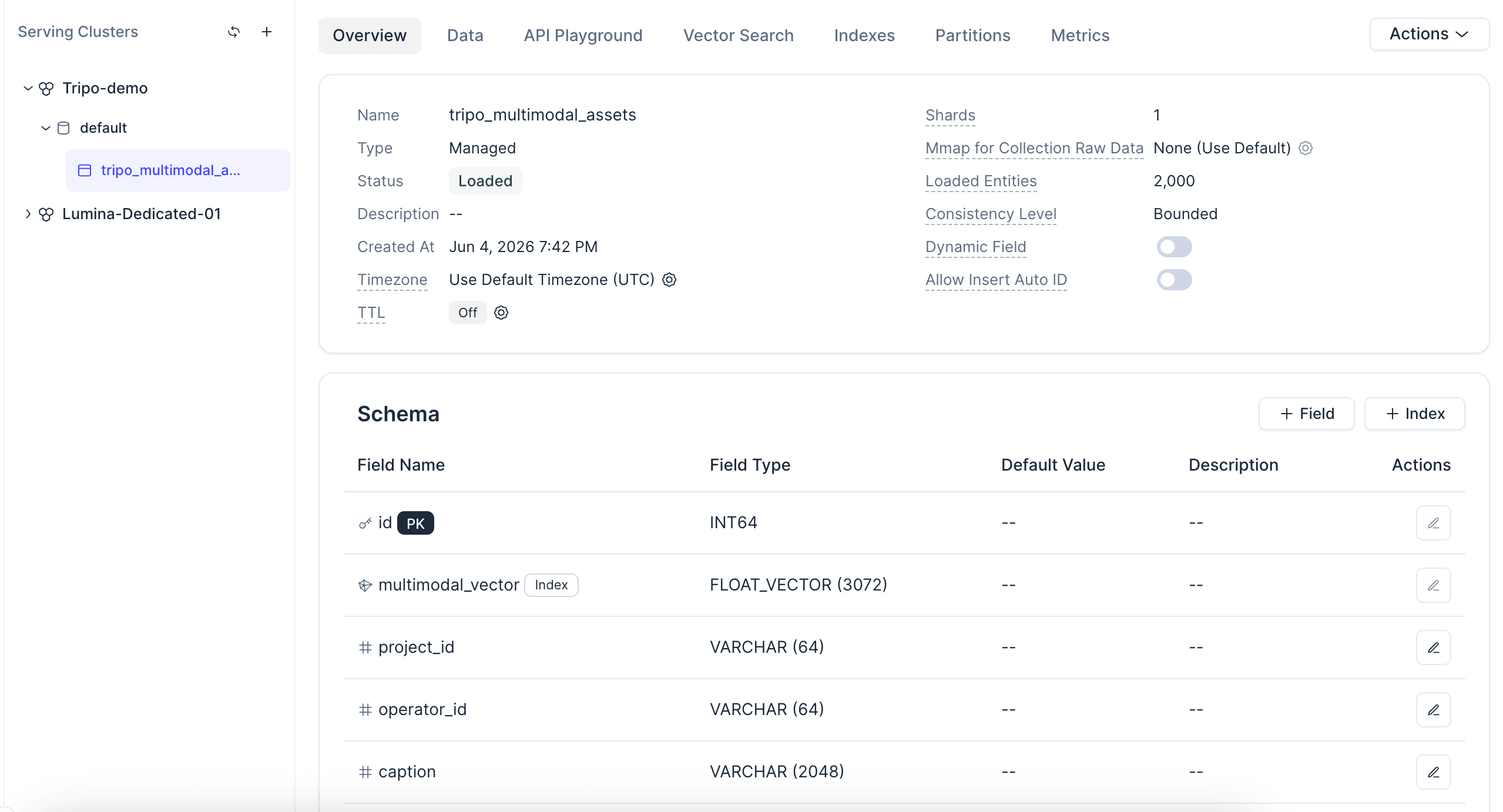
A quick note on the index: AUTOINDEX keeps the tutorial simple because you do not need to hand-tune index parameters before importing data. The COSINE metric type matches the normalized embeddings used in the next step.
Step 3: Generate Multimodal Embeddings for Render Images
Next, generate an embedding for each render preview.
The demo sends the preview image to an embedding model through OpenRouter. The image is encoded as a base64 data URL, and the returned vector is L2-normalized before it is inserted into Zilliz Cloud.
def data_url_for_image(path: Path) -> str:
    mime_type = mimetypes.guess_type(path.name)[0] or "image/webp"
    data = base64.b64encode(path.read_bytes()).decode("ascii")
    return f"data:{mime_type};base64,{data}"

def embed_content(self, content: list[dict]) -> list[float]:
    body = {
        "model": "google/gemini-embedding-2-preview",
        "input": [{"content": content}],
        "encoding_format": "float",
    }

    response = requests.post(
        "https://openrouter.ai/api/v1/embeddings",
        headers=self._headers(),
        json=body,
        timeout=120,
    )

    vector = response.json()["data"][0]["embedding"]
    return l2_normalize(vector)

def embed_image(self, image_path: Path) -> list[float]:
    return self.embed_content(
        [
            {
                "type": "image_url",
                "image_url": {
                    "url": data_url_for_image(image_path)
                },
            }
        ]
    )
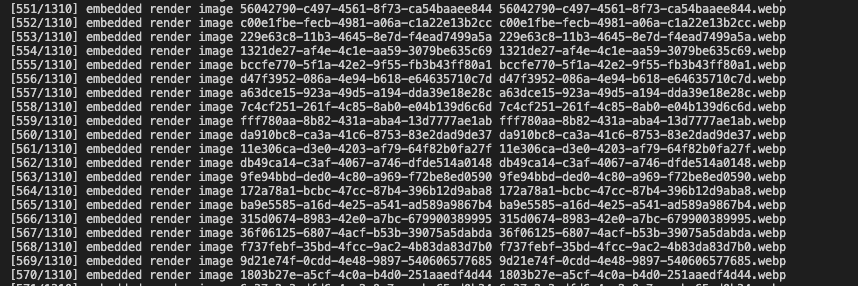
For a real ingestion pipeline, cache the embeddings. Calling an external embedding API for every import is slow, and retries can make repeated test runs expensive.
python3 tripo_rag.py build-cache
A cache also makes import behavior deterministic. You can rebuild the collection, test schema changes, or rerun imports without re-embedding every render preview.
Step 4: Import Asset Records into Zilliz Cloud
After the cache is ready, convert each CSV row into one entity for Zilliz Cloud.
Each entity should include the structured fields and the cached multimodal vector:
def row_to_entity(row_index: int, row: dict, cached_item: dict) -> dict:
    return {
        "id": row_index,
        "project_id": row.get("project_id", ""),
        "operator_id": row.get("operator_id", ""),
        "caption": row.get("caption", ""),
        "llm_keyword": row.get("llm_keyword", ""),
        "llm_object": row.get("llm_object", ""),
        "llm_category": row.get("llm_category", ""),
        "llm_style": row.get("llm_style", ""),
        "llm_color": row.get("llm_color", ""),
        "llm_use_case": row.get("llm_use_case", ""),
        "generation_mode": generation_mode(row),
        "url": row.get("url", ""),
        "input_image_file": row.get("input_image_file", ""),
        "input_image_key": row.get("input_image_key", ""),
        "render_image_file": row.get("render_image_file", ""),
        "render_image_key": row.get("render_image_key", ""),
        VECTOR_FIELD: cached_item[VECTOR_FIELD],
    }
Then import the dataset and check the collection statistics:
python3 tripo_rag.py import-data
python3 tripo_rag.py stats
Open the Data tab in the Zilliz Cloud console to confirm that the asset records were inserted. You should see the metadata fields, render-image references, and vector field for each entity.
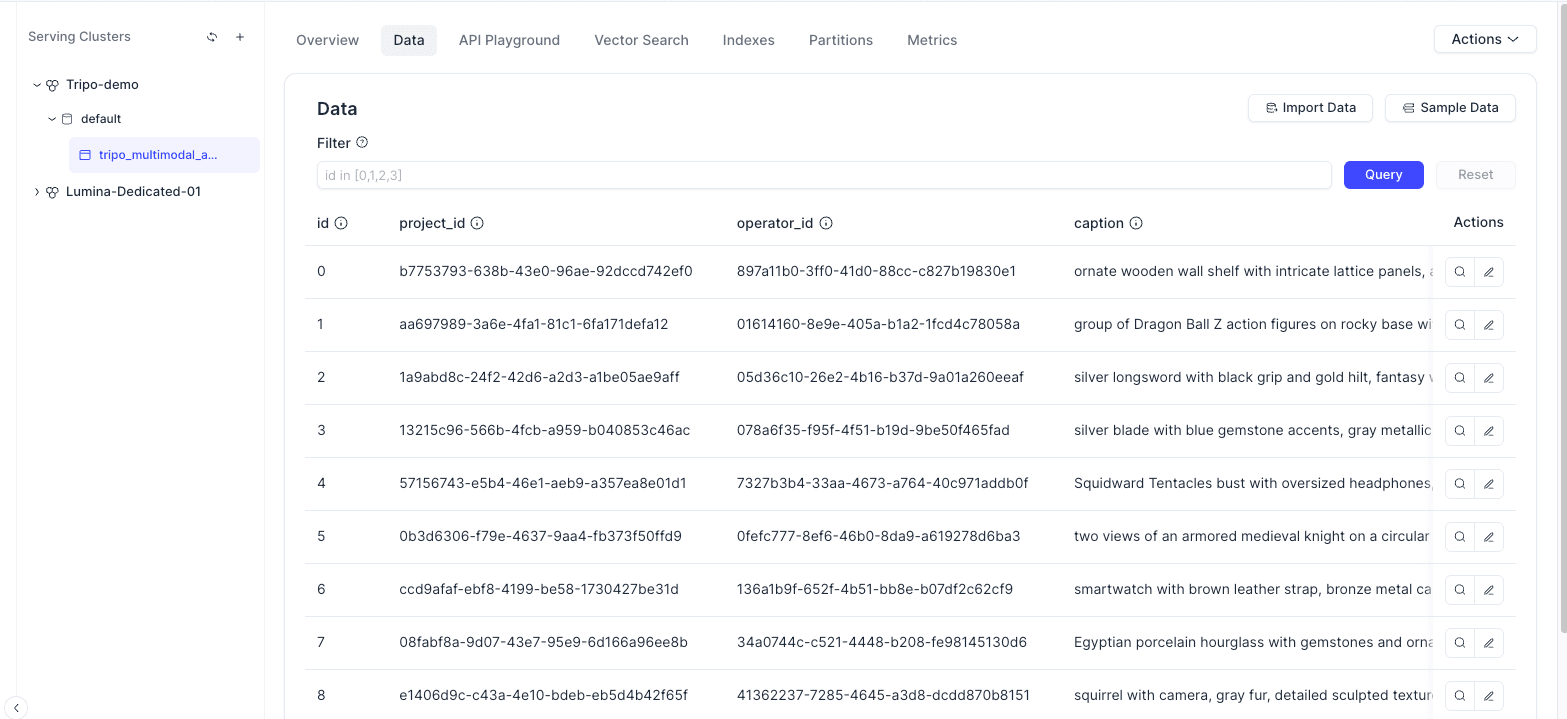
The Tripo assets are now searchable entities in a vector database, not loose local files.
Step 5: Search by Text, Image, or Both
Search runs in three modes, all through the same multimodal model and against the same multimodal_vector field.
| Mode | Use it when | Example |
|---|---|---|
| Text | You can describe what you want | blue fantasy sword |
| Image | You have a reference and want similar assets | upload a stylized shield render |
| Text + image | You want intent and a visual anchor | sword image + fantasy sword with blue gemstone |
The query is embedded into the same vector space as the asset render previews. Zilliz Cloud then searches the vector field and returns the closest assets with their metadata.
def search(args) -> None:
    if not args.text and not args.image:
        raise SystemExit("Provide --text, --image, or both.")

    embedding_client = OpenRouterEmbeddingClient(
        require_env("OPENROUTER_API_KEY")
    )

    client = connect_client()

    if args.text and args.image:
        vector = embedding_client.embed_text_image(
            args.text,
            Path(args.image)
        )
    elif args.image:
        vector = embedding_client.embed_image(Path(args.image))
    else:
        vector = embedding_client.embed_text(args.text)

    results = client.search(
        collection_name=args.collection,
        data=[vector],
        anns_field=VECTOR_FIELD,
        filter=filter_expr(args),
        limit=args.top_k,
        output_fields=[
            "project_id",
            "caption",
            "llm_keyword",
            "llm_object",
            "llm_category",
            "llm_style",
            "llm_color",
            "llm_use_case",
            "generation_mode",
            "render_image_file",
            "render_image_key",
            "input_image_file",
            "url",
        ],
        search_params={"metric_type": "COSINE"},
    )

    for rank, hit in enumerate(results[0], start=1):
        entity = hit["entity"]
        print(
            json.dumps(
                {
                    "rank": rank,
                    "score": hit["distance"],
                    **entity,
                },
                ensure_ascii=False,
                indent=2,
            )
        )
Because each result includes both a similarity score and metadata, your front end can render the preview image, caption, category, style, use case, and original asset URL in the same result card.
Search is not limited to pure vector similarity. Because every asset carries structured metadata, you can add filters to a semantic query in one request. For example, search female but restrict the result set to llm_use_case == "game asset". That is what makes the collection a real catalog instead of a pile of vectors.
Example 1: Text search with a use-case filter
Suppose a game team needs character-like assets. You can search for female and restrict results to the game asset use case:
python3 tripo_rag.py search \
  --text "female" \
  --use-case "game asset" \
  --top-k 12
This returns the closest matching assets from the game-asset subset, which is more useful than searching the full library and manually ignoring irrelevant product, environment, or marketing assets.
Example 2: Text plus reference image search
Text alone is often too broad for visual work. A query like fantasy sword with blue gemstone tells the system what you want, but a reference image anchors the shape, composition, and visual direction.
python3 tripo_rag.py search \
  --text "fantasy sword with blue gemstone" \
  --image ./examples/sword_reference.png \
  --top-k 12
This mode is useful when a creator starts from a visual reference but wants to steer the search with a few words. The reference image carries visual similarity. The text narrows the intent.
What This Enables in a Real Asset Pipeline
Once the library is searchable, teams can use generated 3D assets more like reusable production inventory.
A game team can track prop and character variations across projects. An e-commerce team can organize product-like assets by category, material, and style. A marketing team can keep an approved library of reusable visuals. A creative-ops team can build review workflows around ownership, project IDs, and asset URLs instead of relying on folder names.
The important shift is simple: generation creates the asset, but search makes the asset reusable.
Conclusion
AI 3D generation makes it easy to produce more assets than a manual folder structure can manage. The next bottleneck is retrieval: finding the right asset, understanding where it came from, and reusing it in the right project.
This tutorial showed one way to solve that problem. Generate assets with Tripo, store render previews and metadata in Zilliz Cloud, embed each preview with a multimodal model, and search the collection by text, image, or both. The same pattern can start small with a local dataset and grow into a production asset catalog as your library expands.
That is also the direction behind Zilliz Vector Lakebase: keep multimodal AI data, embeddings, metadata, and serving paths in one searchable foundation, so teams can move from generation to retrieval to reuse without rebuilding the data layer each time.
To try it yourself, sign up for Zilliz Cloud, create a free cluster, generate a small batch of assets with Tripo, and run the pipeline end to end. Once the first search results look right, connect the output to your internal asset browser or creative tool.
Tripo Asset Examples
The assets below were generated in Tripo Studio using the features described in this tutorial.
8K Texture Generation
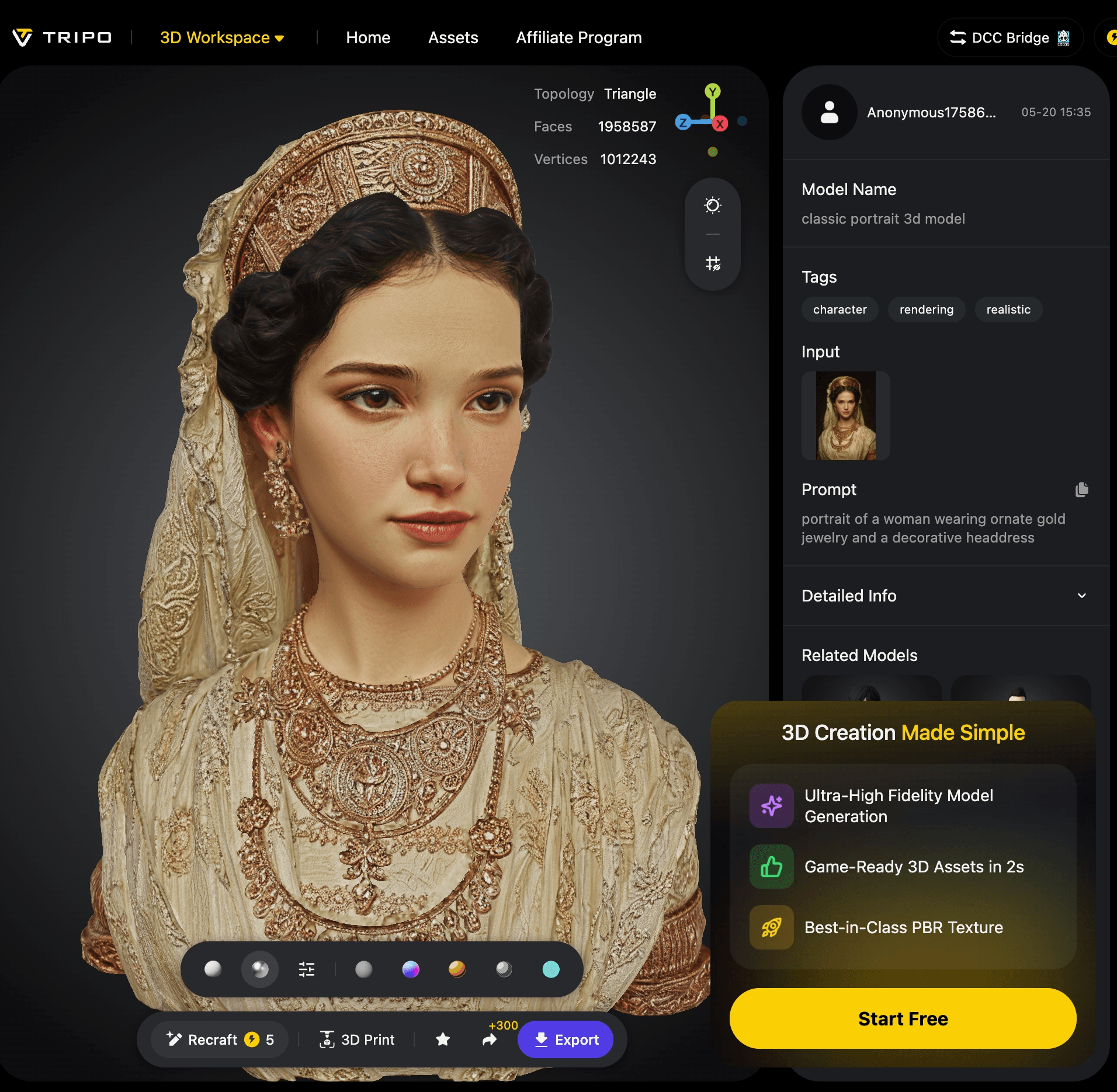
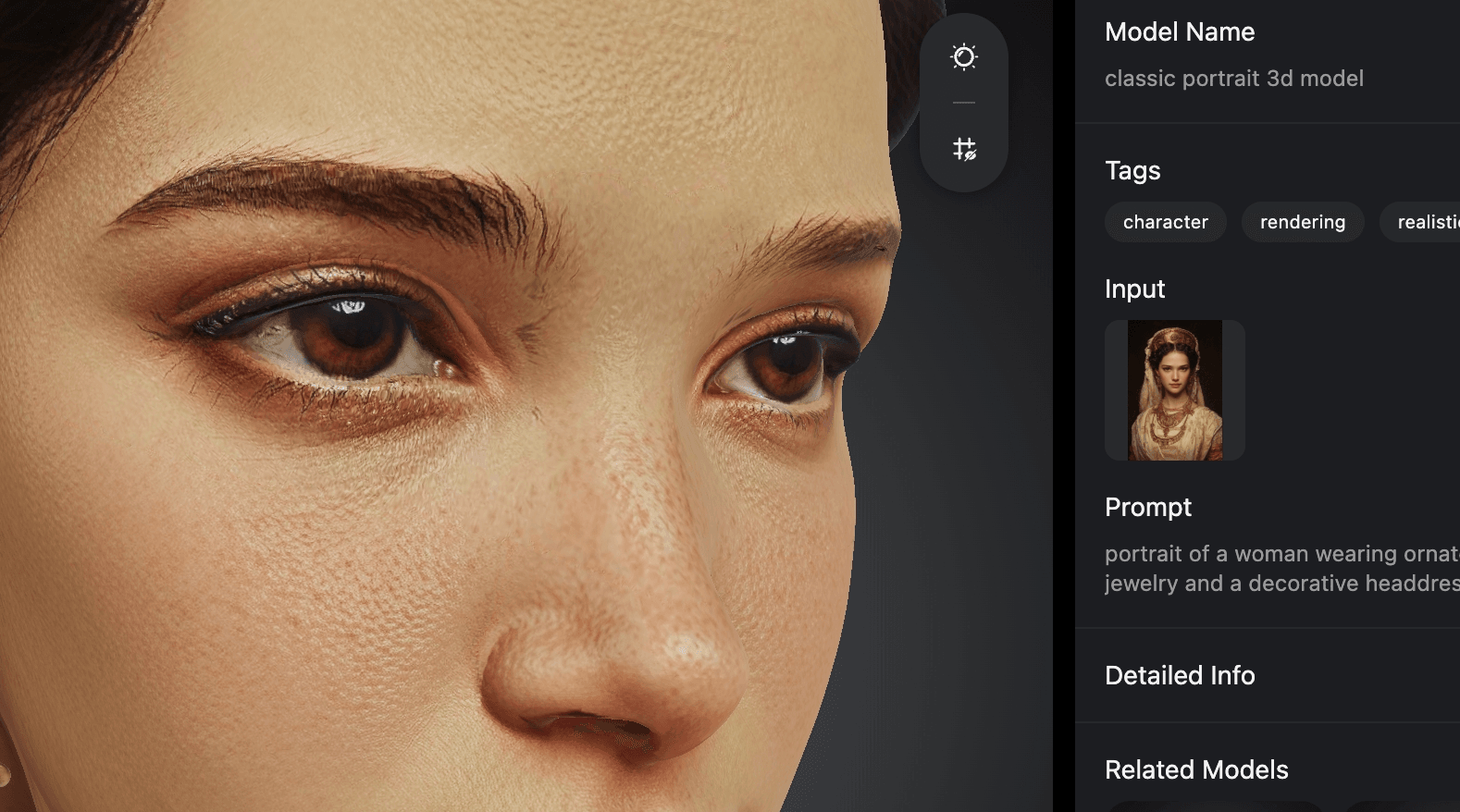
8K texture generation preserves color fidelity and distinguishes surface materials such as metal, leather, fabric, and wood, down to wear marks and micro-textures.
HD Model
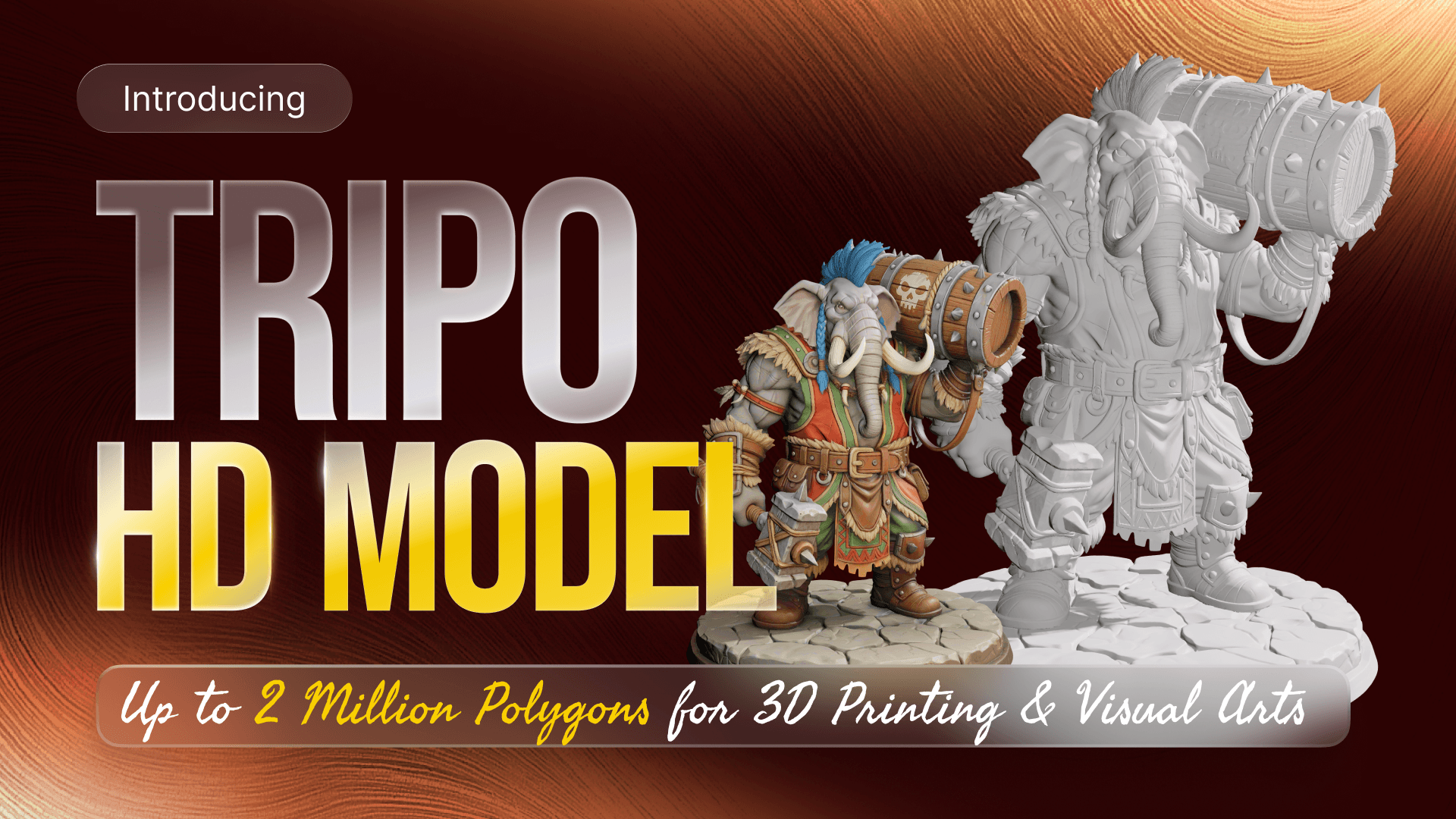
HD Model supports up to two million faces, preserving complex shapes, sharp edges, and fine surface features for rendering, visualization, and 3D printing.


Keep Reading
Notion's Vector Search Is Excellent. Their Next Problem Is Harder.
Notion solved vector search scaling in two years. The next bottleneck — offline context engineering, unified data, and the real-time/offline gap — is harder.

Announcing the General Availability of Zilliz Cloud BYOC on Google Cloud Platform
Zilliz Cloud BYOC on GCP offers enterprise vector search with full data sovereignty and seamless integration.
Vector Databases vs. Key-Value Databases
Use a vector database for AI-powered similarity search; use a key-value database for high-throughput, low-latency simple data lookups.