

Integrating Google Embedding 2 (specifically, the gemini-embedding-2-preview model, which is Google's first natively multimodal embedding model) into your application involves setting up API access, making requests to the model, and then handling the generated embeddings. This model can convert various types of data, including text, images, video, audio, and documents, into numerical vectors that capture their semantic meaning. These embeddings are crucial for tasks like semantic search, classification, clustering, and Retrieval-Augmented Generation (RAG) systems.
To begin, you need to obtain API access, which typically involves setting up a Google Cloud project and enabling the Vertex AI API. Alternatively, for quicker prototyping, you can use the Gemini Developer API with an API key from Google AI Studio. After setting up your Google Cloud project, ensure that billing is enabled and the Vertex AI API is activated. For production environments, it's recommended to use Google Cloud credentials, while an API key from Google AI Studio suffices for development and testing.
Once access is configured, you can integrate Google Embedding 2 into your application by using one of Google's client libraries (e.g., Python, JavaScript, Go, Java) or by making direct REST API calls. The process involves sending your input content (text, image data, etc.) to the embedding model endpoint. For instance, using the Python client library, you would typically import google.generativeai and configure it with your API key. You then call the embed_content method, specifying the model (e.g., 'models/gemini-embedding-2-preview') and your content. This model supports multimodal inputs, meaning you can send a combination of text and other media in a single request, and it will produce a single embedding representing the combined meaning. It's important to specify the task_type parameter (e.g., RETRIEVAL_QUERY, RETRIEVAL_DOCUMENT, SEMANTIC_SIMILARITY) to optimize the embeddings for your intended downstream application, which helps the model produce more accurate results for specific use cases like semantic search or classification. The model defaults to a 3072-dimensional vector but allows adjusting the output_dimensionality for balancing performance and storage costs, with 3072, 1536, and 768 dimensions recommended for highest quality.
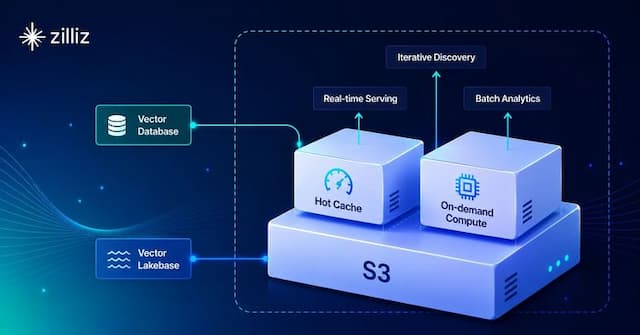
After generating embeddings, you will typically store them for later use in your application. This is where vector databases become essential. Vector databases like Milvus or Zilliz Cloud are optimized for storing, indexing, and querying high-dimensional vectors, enabling efficient similarity search. You would ingest the generated Google Embedding 2 vectors into a vector database alongside any associated metadata. When a user queries your application (e.g., with text or an image), you would generate an embedding for that query using the same Google Embedding 2 model. Then, you perform a similarity search in your vector database to find the most semantically similar items. This allows for powerful features such as recommending relevant content, answering questions based on a knowledge base, or retrieving images using text descriptions. The efficient indexing and search capabilities of vector databases are critical for scaling these applications, especially as the volume of your embedded data grows.